
You have a shape or font graphic but doesn’t quite appear smooth around the edges, here is a simple way to correct this.
1. Ctrl + Click the layer in question to Select it.
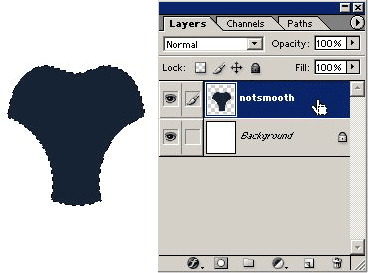
2. Go the Channels Palette and create a new Channel, as i have created one and call it Smoothie.
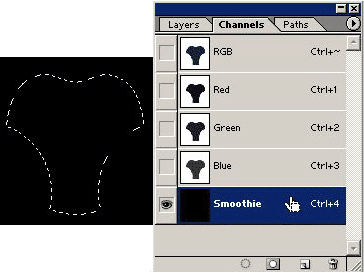
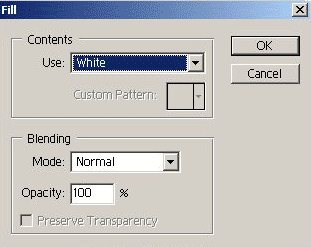
3. Then go to Edit > Fill and choose White.
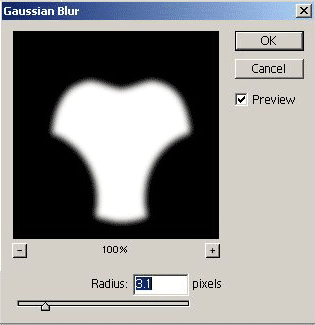
4. Ctrl + D to Deselect that layer. Then go to Filter/Blur/Gaussian Blur or Ctrl + Alt + F and choose a setting range from 2-3.
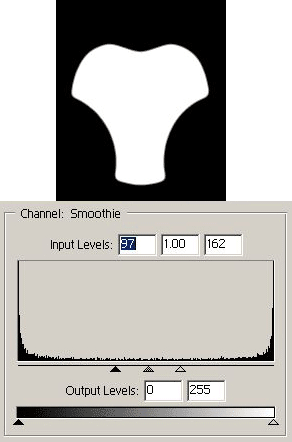
5. Then go to Image/Adjustments/Levels and drag the two end sliders closer to the center until you are satisfied with the smoothness of your shape.
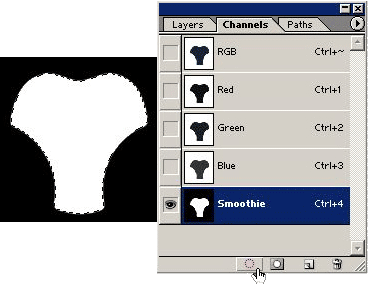
6. Then choose the ‘Load Channel as Selection’ button on the bottom of the Channel Palette.
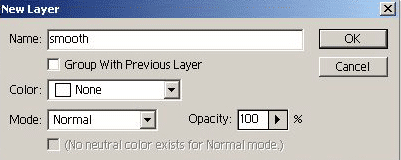
7. Then go to the Layer Palette and create a new layer and call it ‘Smooth’ as I did.
8. Then fill the new layer selection with the color of your original shape (this case black) and then hide the original ‘notsmooth’ layer from your document.
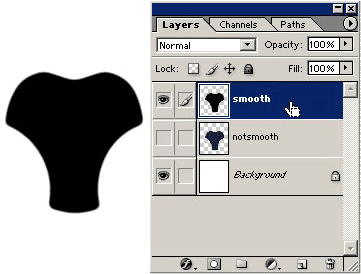
Here’s the final result.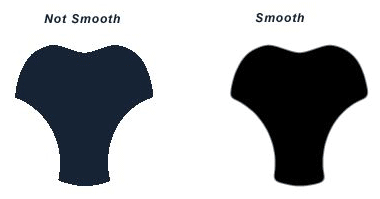
Filed Under: Other Tool Techniques