Here’s a few simple steps to generate variations of line art from your digital photos.
The source image used in this tutorial is from absolutvision.com. Register today for a great high resolution image of the week or for a cost effective monthly or yearly memebrship.
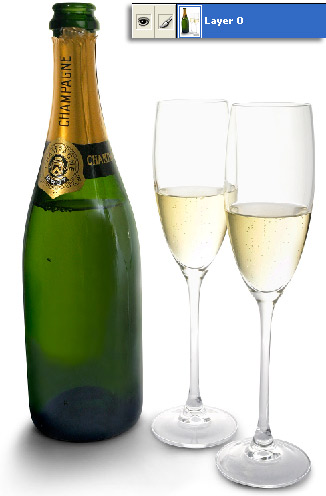
To begin, have the target image layer selected, as I have captured above.
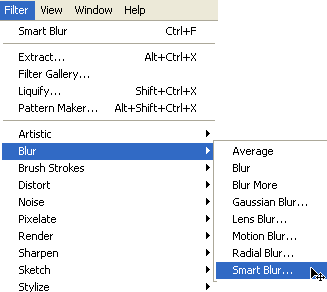
Next, go ‘Filter>Blur>Smart Bur’ as I have captured below.
From the ‘Smart Bur’ dialog, make sure the ‘Edge Only’ Mode is selected and toy with the ‘Radius’/’Threshold’ sliders. The objective is to ensure that an edge line covers the entire image with some overspill into the interior of the image as well.
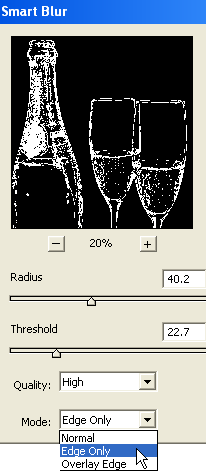
This will produce a similar result as below.
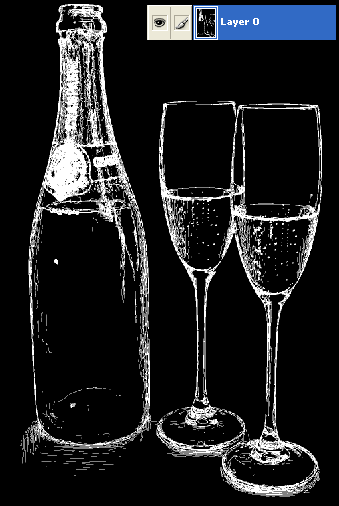
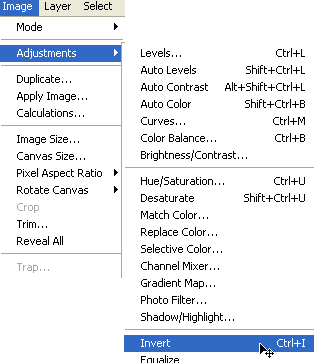
Next, with the same image layer active, go ‘Image>Adjustments>Invert’, as I have captured below.
Inverting produces the below resulting image.
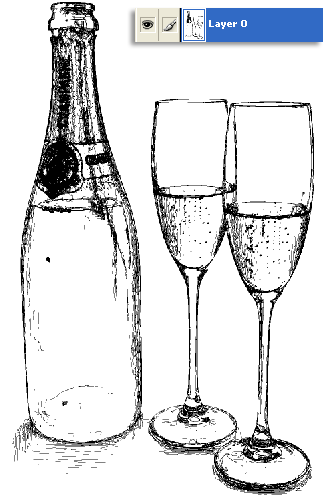
The above result is quite satisfactory, but to add to the edge effects of the line art, go ‘Filter>Artistic>Cutout’ as I have captured below.
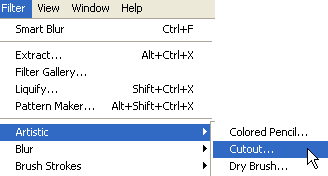
Depending on how thick you want the lines, adjust the Cutout sliders for the desired effect.
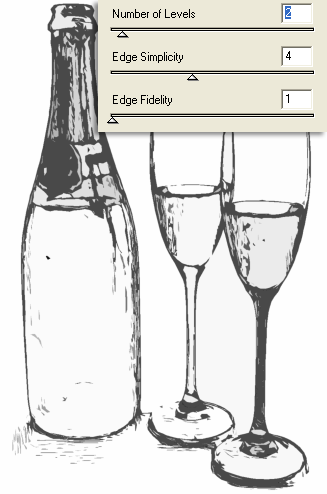
Here is the final result.
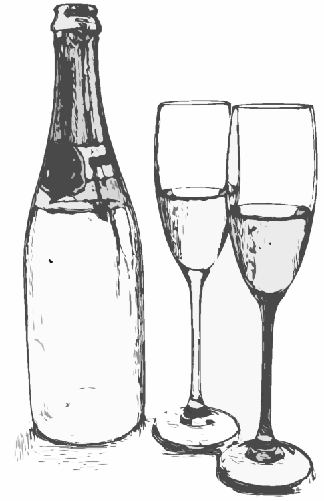
Other samples below:
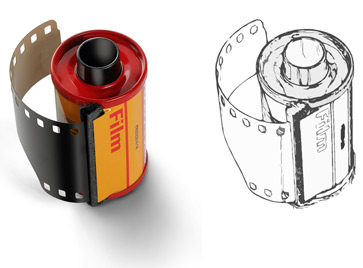
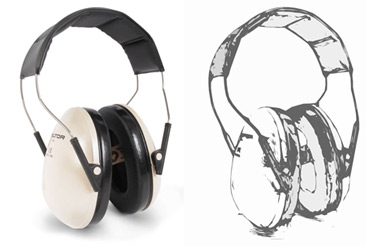
Summary:
1. Smart Blur with Edges Only Mode
2. ‘Ctrl/Command + I’ to invert the result of the Smart Blur.
3. ‘Filter>Artistic>Cutout’ for smooth line definitions.