
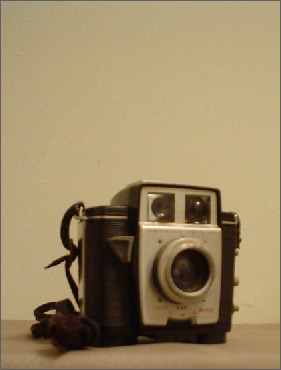
Below is an image of an vintage camera that I own.
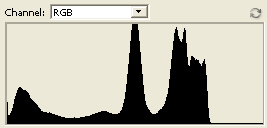
Go to ‘View/Histogram’, and as captured below, the histogram reveals that theres not enough lights – far right (barely any at all in fact, indicated by the sudden drop towards the highlight zone), to much midtones (indicated by dominating peaks- middle area) & sharp shadow zones – immediate left.
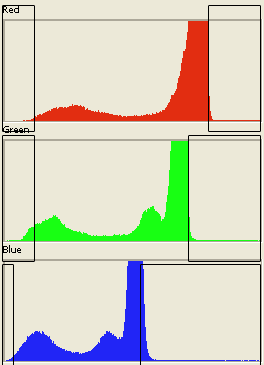
Even in expanded view (Individual Channel Mode), it’s easy to tell where the problem areas are, as I have indicated below in boxes.
Here are a few ways to correct this.
Manual Correction.
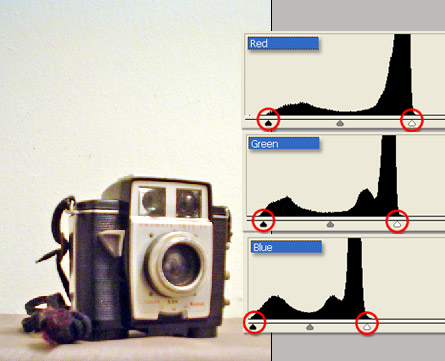
Go back to the Levels command & adjust each of the channel items from the drop down list so that it equates to a corrected color balance as seen to the image on the right.
Set Black, Midtone, Whites with Eyedropper Tools.
But before we do this, let use the ‘Threshold Command’ to help pinpoint the Darkest & Brightest area of this image.
Go ‘Edit/Adjustments/Threshold’.
To locate the darkest area, drag the Threshold slider to the left (encircled in red) and drag to a point where your document preview shows small specs of black (as indicated by the red arrow).
Then bring your cursor to that black location, hold the Shift key, as this will revert the Eyedropper cursor to the ‘Color Sampler’ tool – encircled in blue).
Then click to set a sample for the darkest area.
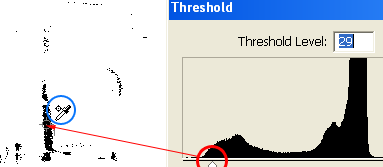
Repeat the process to sample the brightest are by dragging the same thresshold slider to the right, bright the cursor to the brightest location, hold the Shift key and click to sample.
Note: You can see the first sampler that was set. (Encircled in yellow)
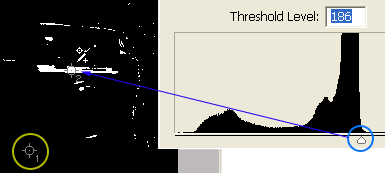
Next, exit/cancel out of the Threshold Command, and go back to the Levels Dialog.
To the lower right, select the Set Black Eyedropper and click inside the Sampler 1. (Indicated by the arrow)
Select the Set White Eyedropper and click inside the Sampler 2.
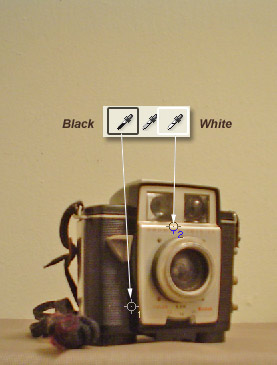
Here is the result.
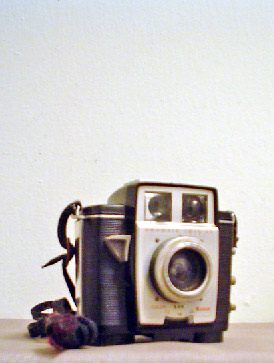
Notes: If you find there’s still some overspill in color, simply go through the manual method above.
Also, for more control, instead of using the ‘Image/Adjustments/Levels or Threshold’ commands, rely on the ‘Layer/New Adjustment Layer/Levels or Threshold’ commands as they allow for edit ability.