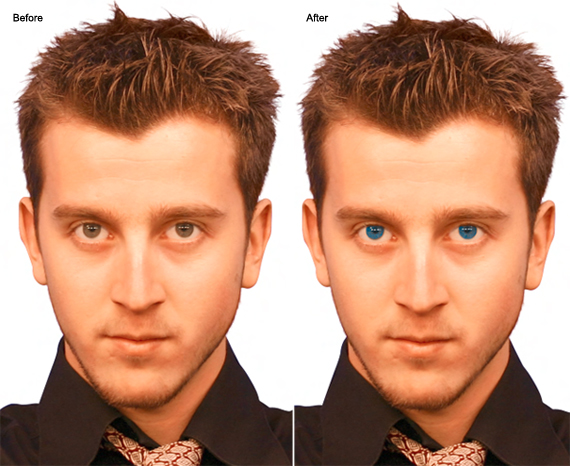
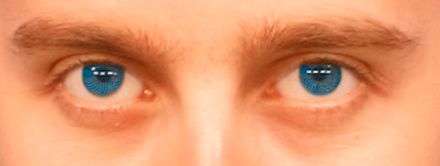
Below is the sample image.
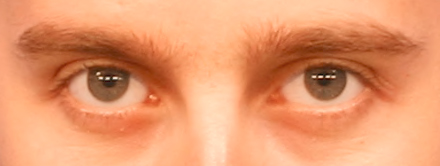
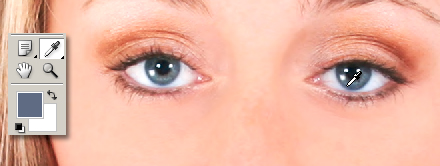
One option to start with is to sample from another image that has a different eye color you would like to mimic.
With the target sample open, activate the ‘Eyedropper Tool (I)’ and click once in the blue eye area to sample from. Note: That new sample now becomes the foreground swatch.
Switch back to your original target image. (Duplicate original image layer before proceeding)
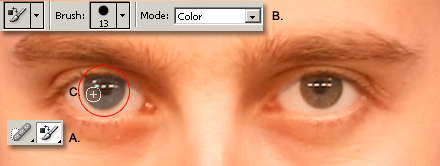
- Activate the ‘Color Replacement Tool (B)’.
- Then up on the Options Bar, select a brush preset and ensure your ‘mode’ is set to ‘Color’, as captured below.
- Then brush over the old eye with the new foreground swatch color.
Not intense enough for you!
Undo the last step. Double click the Foreground Swatch color and pick a new one from the Color Picker Palette. Then repeat the above 1, 2 and 3 process.
Here is the final before and after shot.