
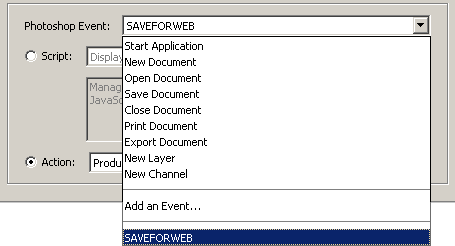
Remove A Notifier
You can remove a custom notifier (such as the SAVEFORWEB listed above) event from the drop-down list by deleting the Script Events Manager.xml preference file from in the Photoshop preferences folder.
To locate the Script Events Manager.xml:
- XP
‘DRIVELETTER:Documents and SettingsUSERPROFILEApplication DataAdobePhotoshop9.0Adobe Photoshop CS2 Settings’ folder - Vista
‘DRIVELETTER::Users[USERPROFILE]AppDataRoamingAdobeAdobe Photoshop [version #]Adobe Photoshop [version #] Settings’ folder - Mac:
‘UsersUSERPROFILELibraryPreferencesAdobe Photoshop CS2 SettingsAdobe Photoshop CS2 Settings’ folder
Note: Deleting the Script Events Manager.xml Preference file is permanent. Consider backing it up to another location before deleting it.
Or if your have multiple custom notifiers added to the list, open the same .xml file noted above and only delete the xml nodes you don’t need.
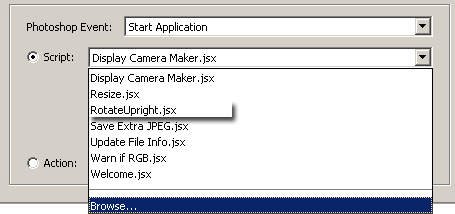
Maually Add Notifier
To add items to the ‘Script’ drop down list simply copy your custom .jsx files to the following location:
DRIVELETTER:Program FilesAdobeAdobe Photoshop CS2PresetsScriptsEvent Scripts Only
…and they will automatically be appended to the Photoshop Events list, as captured above (RotateUpright.jsx is new in the list).
Otherwise, select the last itme in the list ‘Browse’ to locate the .jsx script you would like applied with your Event.
Note: If you choose the ‘Browse’ option, the .jsx file must remain in that same location for as long as this Event exist.
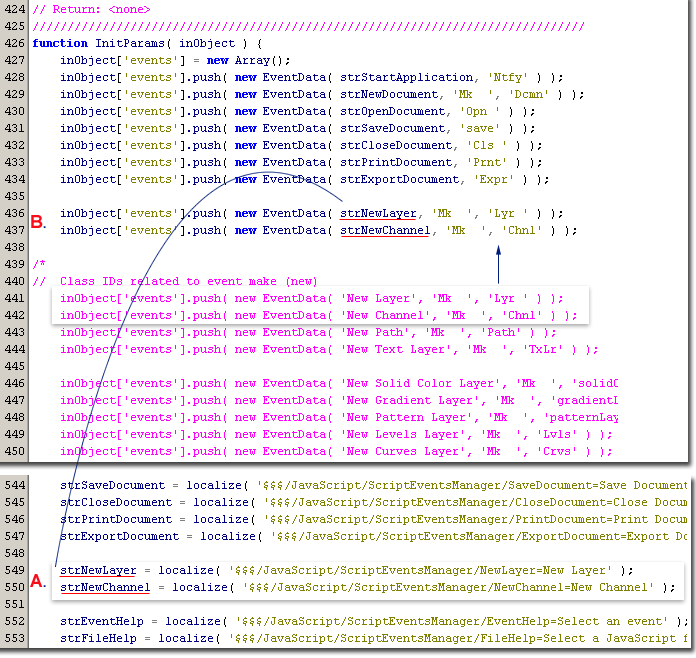
To add to the Events drop down list programmatically, browse to and open the Script Events Manager.jsx file with the ExtendScript Toolkit and you will notice there are an additional 30+ Event ClassIds (commented out – in Pink/ See below capture).
Note: Backup your original file before experimenting.
Script Events Manager.jsx is located in the ‘DriveLetter:Program FilesAdobeAdobe Photoshop CS2PresetsScripts’ folder ExtendScript Toolkit is a Javascript Utility available upon install and is located in the ‘DriveLetter:Program FilesAdobeAdobe UtilitiesExtendScript Toolkit’ folder.
For example I created two objects for the following two Events in the ‘Function: GlobalStrings’ section.
strNewLayer = localize( ‘$$$/JavaScript/ScriptEventsManager/NewLayer=New Layer’ );
strNewChannel = localize( ‘$$$/JavaScript/ScriptEventsManager/NewChannel=New Channel’ );
Then uncomment them in the ‘Function: InitParams’ of the code like below:
inObject[‘events’].push( new EventData( strNewLayer, ‘Mk ‘, ‘Lyr ‘ ) );
inObject[‘events’].push( new EventData( strNewChannel, ‘Mk ‘, ‘Chnl’ ) );
As you can see below, I have the two above Photoshop Events available in the list.
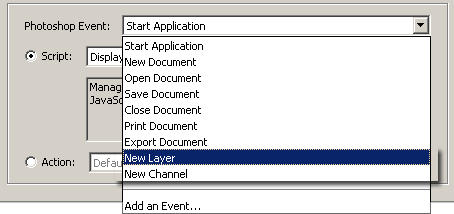
If you know your way around scripted functions then repeat the above process for the other available ClassId’s, otherwise consult ‘Appendix A: Event ID Codes’ of the JavaScript Reference Guide.pdf in the Scripting Documentations link below.
Photoshop CS2 Scripting Documentations can be viewed here.
See the Photoshop CS2 Scripting Guide for more information on scriptable events.