Unlike with Photoshop File>Automate>Batch command Bridge offers a much simpler method of renaming files.
Pro’s of using Bridge Batch.
- It does not require a ‘Play’ Action property, unlike in Photoshop. Ie it goes right to the heart of the matter – batch renaming.
- Seamless processing behind the scenes so you can continue work in other areas.
- Bridge Batch processing allows for Custom Text inclusion.
- Bridge Batch processing allows for 9 custom properties plus the final .ext property while Photoshop only allows for 5 plus the final .ext property.
- Bridge Batch processing allows for Custom Text inclusion.
Step 1: Browse to folder of Images.
- Go File>Browse to bring Adobe Bridge to the foreground.
- Then browse to a folder of images to test on, as I have captured below.
As often the case with images from a digital camera the naming convention is less desirable, as you can see below.(Though these are not images from a camera I renamed them to simulate ones from my point and shoot camera)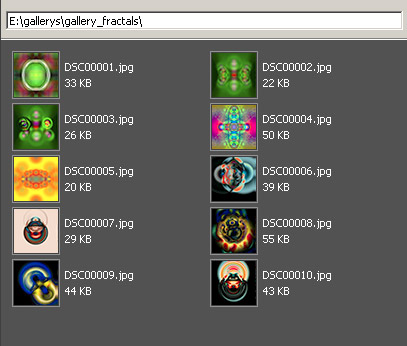
Step 2: Select images.
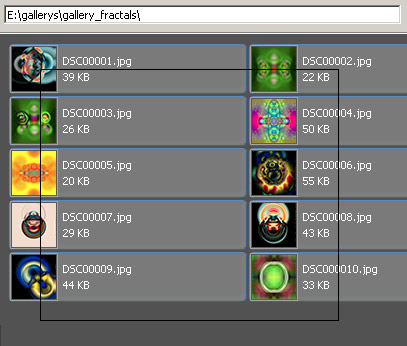
- To select ALL images, simply click from a non-thumbnail area (in my case lower right) and drag (in my case to the upper-left corner) and you will see a bounding selection outline (solid line) containing the active/selected images. Or go Edit/Select All (Ctrl +A) / (Mac:Command + A)
- For a contiguous selection of images hold the Shift key and click on two thumbnails, or for a non-contiguous selection hold the Ctrl key (Mac:Command key) and click any thumbnails.For the sake of this tutorial, I used the select ALL images method.
Step 3: Batch Rename.
Go to the Tools/Batch Rename menu command.
- Choose Destination Folder option. I used ‘Rename in same folder’ but you may want to select one of the other two options to protect important original image files.
- Choose custom ‘Text’ from the first drop down list.
- Type in your custom text – I used ‘fractals’.
- Click the + icon command to add another parameter.
- Choose custom ‘Text’ again from the drop down list.
- Type in your custom text – I used an underscore character (_) to separate portions of the filename.
- Click the + icon command to add another parameter.
- Select Sequence Number from the drop down list.
- Starting sequence number will be 1…
- …. but will contain Two leading Digits, such as 01, 02, 03 etc.
Note: The preview portion indicates the before and after.
Press the Rename command option (upper right) to commit Batch processing.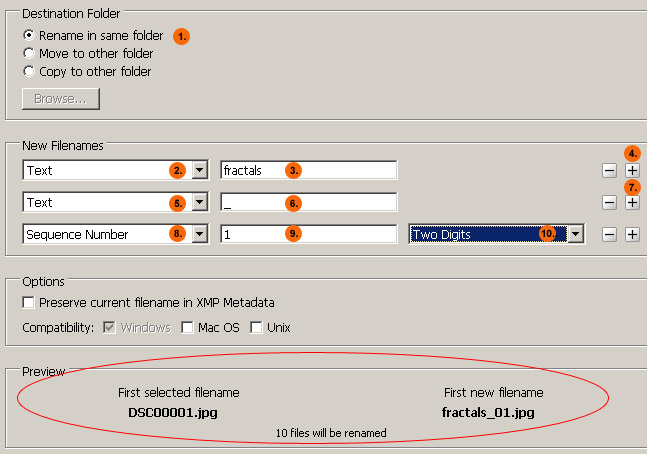
Here is the resulting Batch Rename.
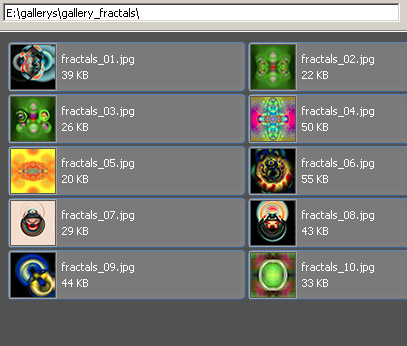
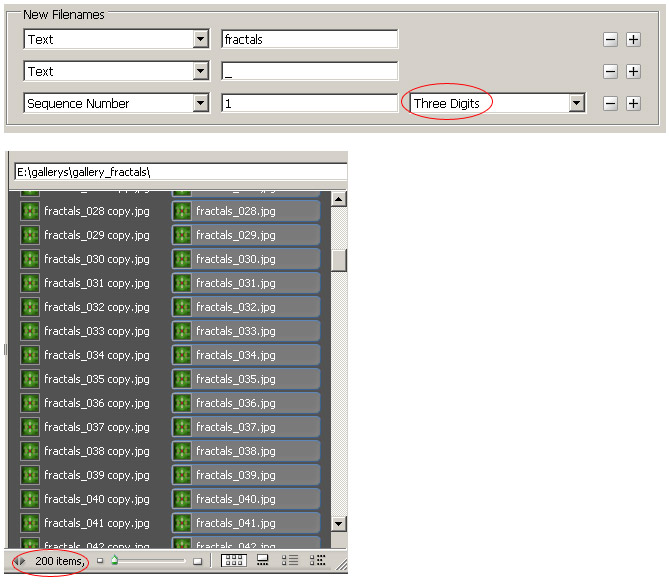
Note: For Sequential Renaming the above Two Digit parameter is fine for a folder of images less than a hundred, but for more than that adjust the Digit parameter to a higher number.