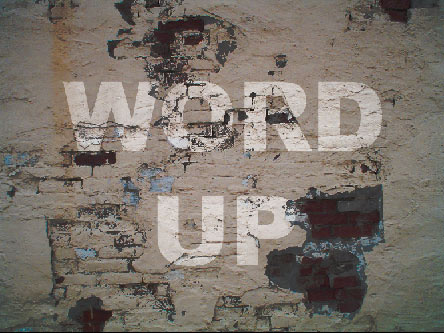
An effective way to blend items into textured surfaces.
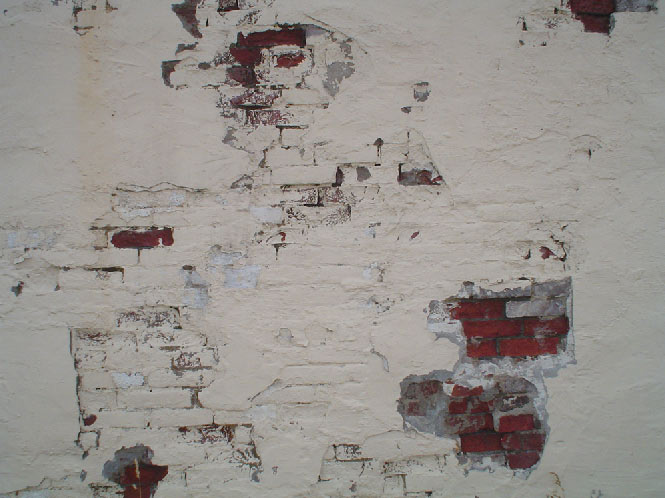
Below is the starting textured image.
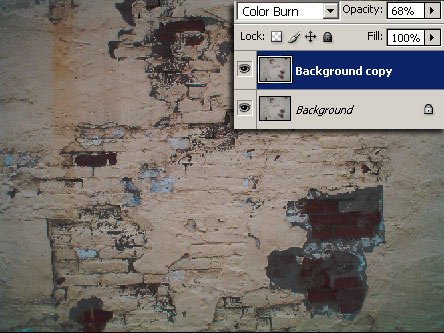
Simply duplicate the original texture and alter its Blending Mode to Color Burn and reduce its Opacity to a moderate level. I used 68%.
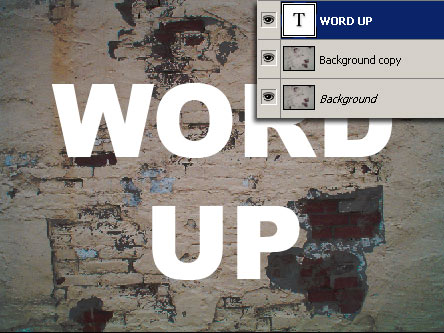
Add a new Type Layer, above the textured layers as I have captured below.
(Type preferences your choice: I used Arial Black, color white)
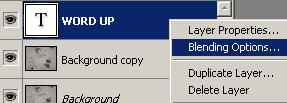
Next, in the Layers Palette, Right Click on the Type Layer and from the context menu list choose Blending Options, as I have captured below.
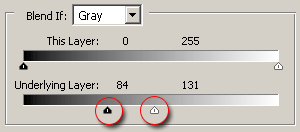
Within the Blending Options/Layer Styles main panel, go to the lower left to the Blend If section.
Click and drag to adjust the ‘Underlying Layer’ sliders as I have encircled below.
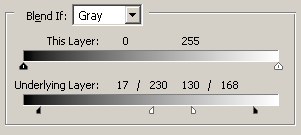
Hold the Alt key and click on each of the Underlying Sliders to split them apart.
Adjust the half’s to apply gradual tonal values to the blending, as captured below.
Final Blend.