 Aside from the major performance, stability, install and memory enhancements here is my little list of most liked Adobe Fireworks CS5 items (new or updated).
- FXG 2.0 Specification Update: It may be an update, but imagine for a moment every Adobe application offerring full round-tripping capability (like Illustrator CS5 offers) with this graphic format. Sure could eliminate the Import/Export file format juggling! Fireworks CS5 FXG export fidelity does a great job better and faster than in previous years of export to .psd or .eps.
- New Templates Workflow: Simplify document preset management according to the specification standard that best depicts your workflow. Use the pre-fab available templates or add to the list with your own, it’s sure to speed up design implementation.
- Property Inspector Workflow Enhancements: This one actually contains a handful of useful additions (enhancements) into one group – found under the Property Inspector ‘hood’ workflow. Items like Lock Constraint Proportions, direct Stroke Options accessibility, the new Compound Shapes tools workflow and more.
- Text Engine Updates: Tons of little enhancements give the Fireworks CS5 Text Engine a spark of power over previous versions. Be sure to check out the list below.
- Layers, Pages, States Panel Improvements: Another group of enhancements I ‘bulked’ into a category mainly because they are tied into the Layers, Pages and States workflow. The best one here for me would be the Export Options Page/State (Selected, All, Current) available options.
1. FXG 2.0 Specification: The FXG (Flash Xml Graphics) specification is updated to version 2 and supports the following workflow scenarios.
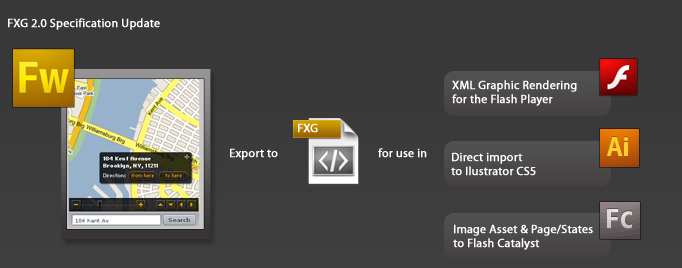
Standard Fireworks CS5 FXG Export: File > Export > FXG and Images choose ‘All Pages/Current Page/Selected Objects in Current Page’ option then utilize the FXG file in any of the following ways.
* See Fireworks CS5 direct mapping to FXG capabilities below. Objects, object properties, filters and blend modes not supported will be translated/mapped as an image ‘asset’.
Fireworks CS5 to IllustratorCS5 FXG Support: File > Export > FXG and Images, choose ‘All Pages/Current Page/Selected Objects in Current Page’ option then ‘ Open/Import’ the FXG file directly into Illustrator CS5. This workflow offers incredible file fidelity, particularly among vector objects, type objects, and their associated property attributes.
* Illustrator CS5 to Flash Catalyst offers full (direct) round-tripping support.
Fireworks CS5 to Flash Catalyst FXG Support: File > Export > FXG and Images, choose ‘All Pages/Current Page/Selected Objects in Current Page’ option then from the Flash Catalyst splash screen choose ‘Create New Project from Design File: From FXG File’ option.
* Fireworks CS5 does not support (direct) round-tripping with Flash Catalyst.
Additionally working with a Flash Catalyst project Fireworks CS5 FXG assets can be imported from the Flash Catalyst File > Import > Adobe FXG File option.
Fireworks CS5 to FXG 2 Direct Mapping Support:Filter Mappings: Blur, Blur
- Filter Mappings: Blur, Blur More , Inner Shadow and Drop Shadow;
- Blend Mode Mappings: Normal, Layer, Multiply, Screen, Lighten, Darken,Difference, Add, Subtract, Invert, Alpha, Erase, Overlay, Hardlight, Colordodge, Exclusion, Hue, Saturation, Color, Luminosity, Colorburn and Softlight;
- Gradient Mappings: Linear and Radial gradients;
- Mask Mappings: Alpha and Clipping masks;
2. New Templates Workflow: Choose from a variety of template presets (Document, Grid, Mobile, Web and Wireframe) as a basis for your design.
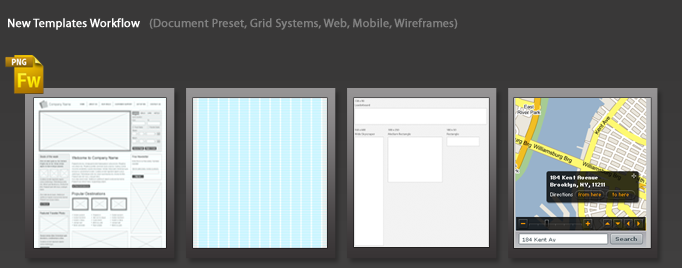
Standard Workflow Options:
- Access currently available template presets from Splash screen ‘Create New: From Template’ option or;
- From the ‘File > New From Template’ menu option;
- File > New Document dialog;
Additionally add to the template preset list using your own workflow standards design and use the new ‘Save As Template’ File menu option.
3. Property Inspector Workflow Enhancements:
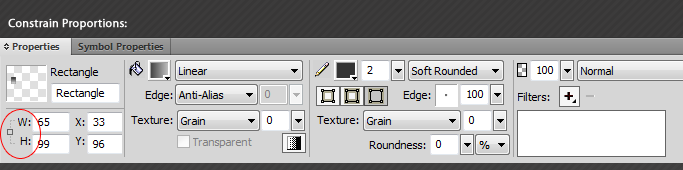
Constrain Proportions: Lock proportional constraints instantly in the Property Inspector.
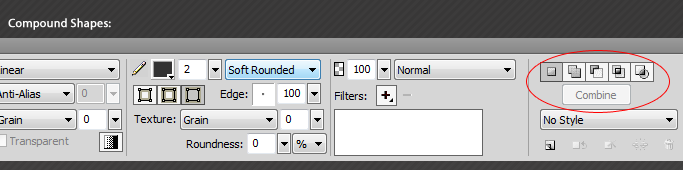
Compound Shapes Workflow: Ability to create a compound shape with a set of selected input vectors tools.
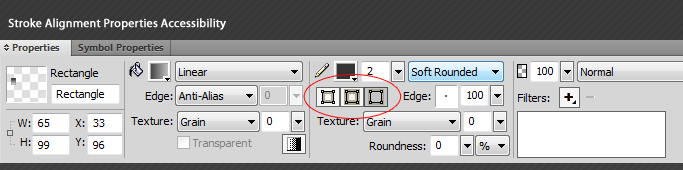
Stroke Alignment Properties Accessibility: Instant access to Stroke Alignment Properties.
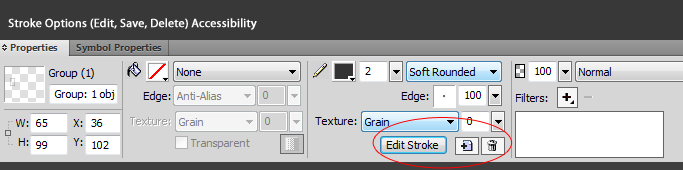
Stroke Edit/Save/Delete Accessibility: Instant access to Stroke Edit, Save and Delete commands.
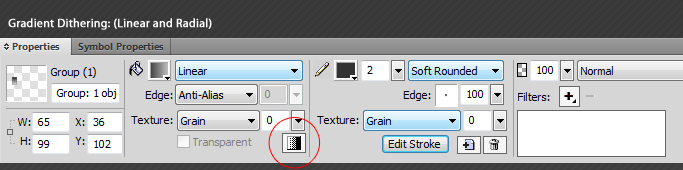
Gradient Dithering: Produce smoother gradients by toggling this option in the Property Inspector for an active gradient property. * Restricted only to Linear and Radial Gradients.
Reverse Gradient Option: Instant access to the Reverse Gradient toggle option directly in the Gradient Editor pop-up.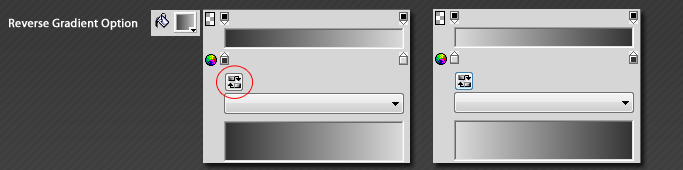
4. Text Engine Updates
- Ability to select similar characters inside a text block;
- – Alt/Option + Double Click a single word/character that has styled attributes (bold for example), selects all others words/characters with the same attributes;
- Text Object Layer icon enhancement;
- Ability to multi-select the text characters inside a text block;
- – Shift + Up (previous line)/ Shift + Down (jump to next line) Key combinations;
- Ability to undo the changes done while being inside the text editing mode. I.e., undo at a character level is now possible in the editable mode;
- – Ctrl/Cmd+Z to Undo. Ctrl/Cmd+Y to Redo.
- Kerning between the characters can be changed by keeping the cursor in-between and using the keyboard arrow keys. The slider value of the same has also been increased to 200 now.
- Kerning/Tracking between letters: Put cursor between two characters then;
- Ctrl/Command + Left(Decrement by 10)/Right(Increment by 10);
- Ctrl/Command + Shift + Left(Decrement by 100)/Right(Increment by 100) Keys;
- CS3 Kerning/Tracking values will automatically be mapped, when opened in Fireworks and the look will be preserved;
- Text overflow indicator will be shown in case of extra characters that are not fitting for text-in-path or text-on-path;
- Double click selects a word;
- Triple clicking inside a text block will now automatically select the whole paragraph at once;
- Copy-Paste Text objects from Illustrator CS5 into Fireworks CS5 now has better fidelity since it comes through AICB.
- Text block now supports line breaks also even if there is a paragraph break set to it;
- Number of characters which can now be copy-pasted into a text block at a single time, has been increased from 2000 to 8000;
- Double-byte fonts (e.g., Japanese, Korean, Chinese, Hebrew, Arabic, etc) are logically organized in the Fonts menus;
- Editable/Auto-Complete font list box (Windows only);
- Install new font without application restart (Win only);
5. Layers, Pages, States Panel Improvements
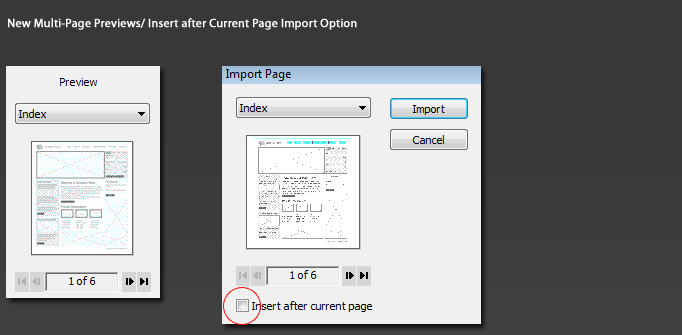
New Multi-Page Previews for native PNG Files: Preview multi-page native .png files in the Open, Import, New From Template options.
During Import operations double click a file to access the Import Page dialog that allows you to insert target page after the current page.
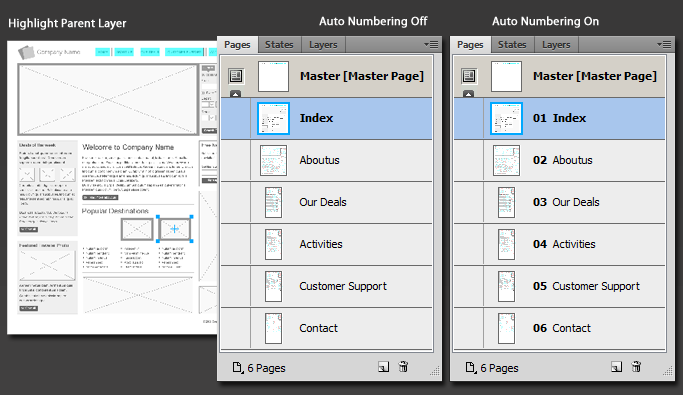
Smarter Page/State Auto Numbering: Toggle ‘Numbering’ from the Pages property options context menu.
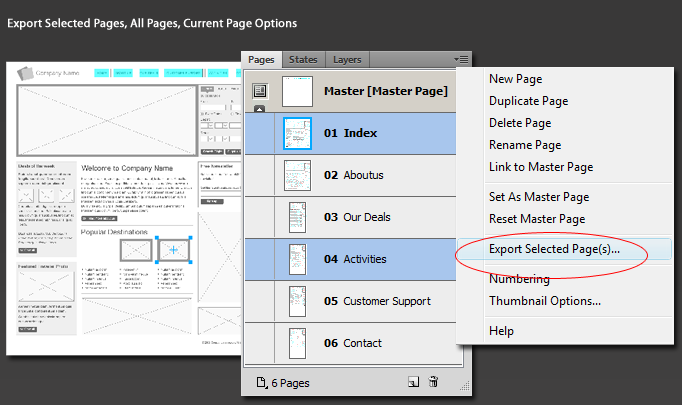
Export Option Enhancements: Pages Panel offer Export Selected Page(s) (as well as Right/Option Click a Page) and the File > Export: Layer, States, Pages to Files options now offer ‘Current, All, Selected Pages’ options.
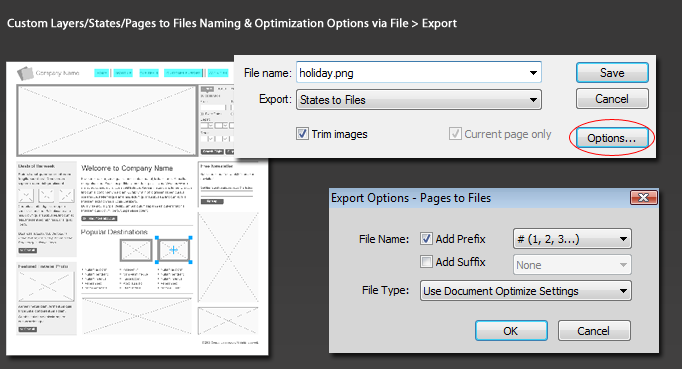
Custom Layers/States/Pages to Files Naming & Optimization Options: From the File > Export command: Layers/States/Pages to Files now have an Option button to customize prefix and suffix naming as well as choice of optimization.
Custom State Naming Export Option: Via the File > HTML Setup: Document Specific tab and choose ‘Extension for Slice States’ drop down list, then the last option in the list (Custom).

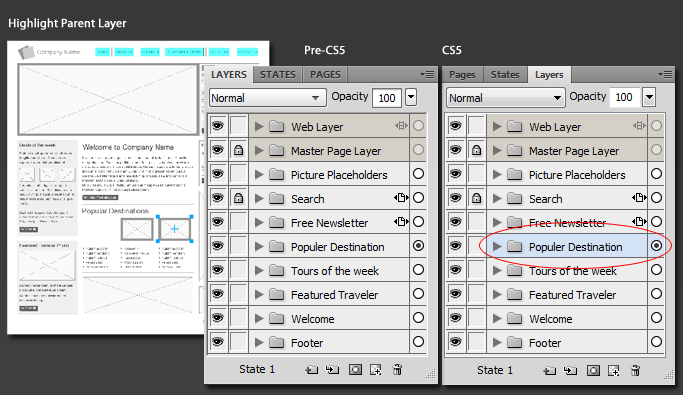
Highlight Parent Layer: It used to be if you had an object selected in a Sub-Layer and the parent layer was collapsed, no layer would be highlighted in the layers panel so you wouldn’t know where the object is. Now it highlights the parent layer.