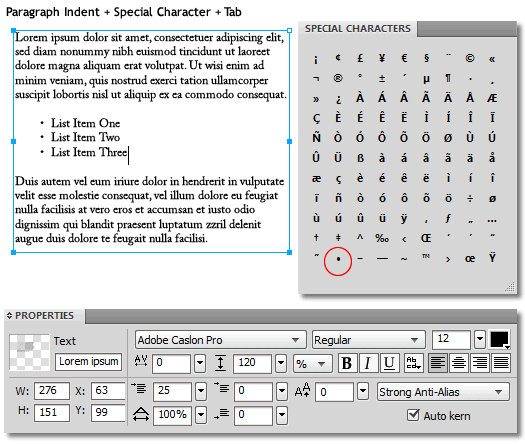
Reduce multiple Type Layer clutter using the available tools (Special Characters) and features (Paragraph Indent) within a single text object block.
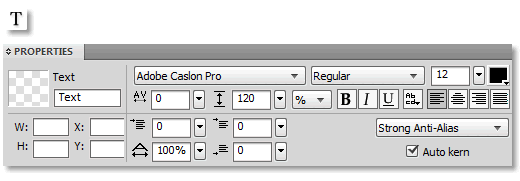
- Select the Type Tool and set your Property Inspector (Font Face, Size, Color) options for the active Type Tool. Example, I used Adobe Caslon Pro, Size of 12, Color Fill of Black.
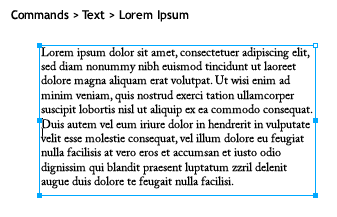
- Create a text object using the Commands > Text > Lorem Ipsum menu command.
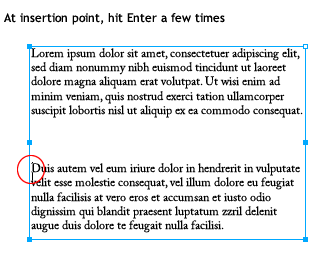
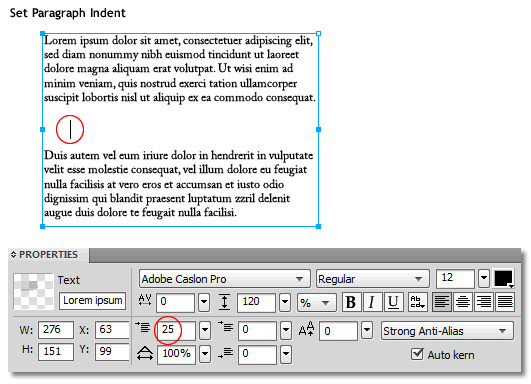
- Click once in an area within the Lorem Ipsum text object (encircled in red, below) and hit the Enter key a few times to simulate separate paragraphs.
- Place the cursor between the two paragraphs. Go to the PI and set the default Paragraph Indent of 0 to 25. Exact indent value is entirely up to you.
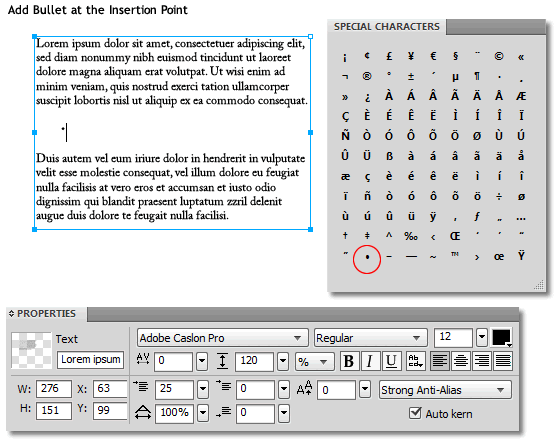
- Go Window > Other > Special Characters Panel and click once on the ‘dot’ character symbol (encircled in red, below) to insert a bullet list item.
- Still at the insertion cursor, hit the Tab key, then add required list item, like ‘First List Item’, as I have captured below.
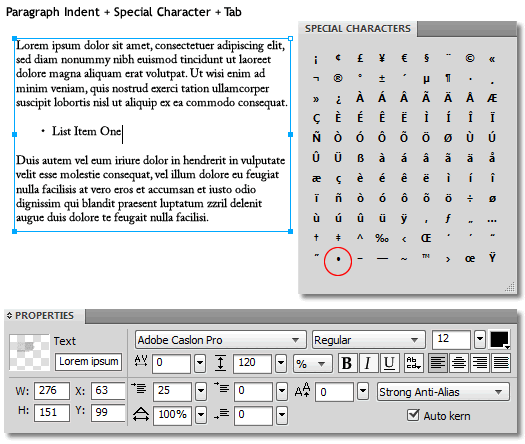
- Hit Enter and repeat 5,6 for as many ‘list’ items you need.